How to open a SQLite database file without changing it
You've got a file called app.db, data.sqlite or history.sqlite3, maybe from a phone backup, a browser profile, a mobile app you're building or a colleague's project. You want to see what's in it. You don't want to break it.
SQLite files are just single files on disk, so any tool that opens them can also write to them. Most of the time that's fine. But if the file belongs to a running app, or it's the only copy, a stray click or an app that "upgrades" the file on open is enough to cause trouble. Here are four ways to look inside, and how each one keeps the file safe.
First: make a copy, and copy the -wal file too
If there's a file next to your database with the same name plus -wal (for example app.db-wal), copy both. SQLite in WAL mode keeps recent changes in that second file until it's merged back. Copy only app.db and you may be looking at data that's hours or days old.
Working on a copy is the simplest safety net, whichever tool you use below.
1. The sqlite3 command line, in read-only mode
If you have the sqlite3 program installed (it ships with macOS and most Linux systems), open the file read-only:
sqlite3 -readonly app.dbThen .tables lists the tables, .schema tablename shows how a table is built, and a normal SELECT * FROM tablename LIMIT 20; shows rows. Add .mode box before your query for a tidier table.
It's free, fast and exact. It's also all text, so scrolling through thousands of rows or comparing columns gets tiring quickly. See the sqlite3 command line docs for more.
2. DB Browser for SQLite
DB Browser for SQLite is a free desktop app for Windows, macOS and Linux. It shows tables in a grid, lets you browse and filter, and can export to CSV. Use Open Database Read Only… from the File menu if you only want to look, so edits can't be saved by accident.
It's a good choice when you work with SQLite often and don't mind installing a separate program.
3. A database IDE
General database tools such as DBeaver also open SQLite files, next to PostgreSQL, MySQL and others. They're powerful, but heavy if all you want is to peek inside one file. Check the connection settings for a read-only option before you start clicking around.
4. Inside VS Code, read-only by default
If you already spend your day in VS Code (or VSCodium, Cursor and other editors that use Open VSX), you can open the database right next to your code. Our free SafeLite: SQLite Viewer extension was made for exactly this:
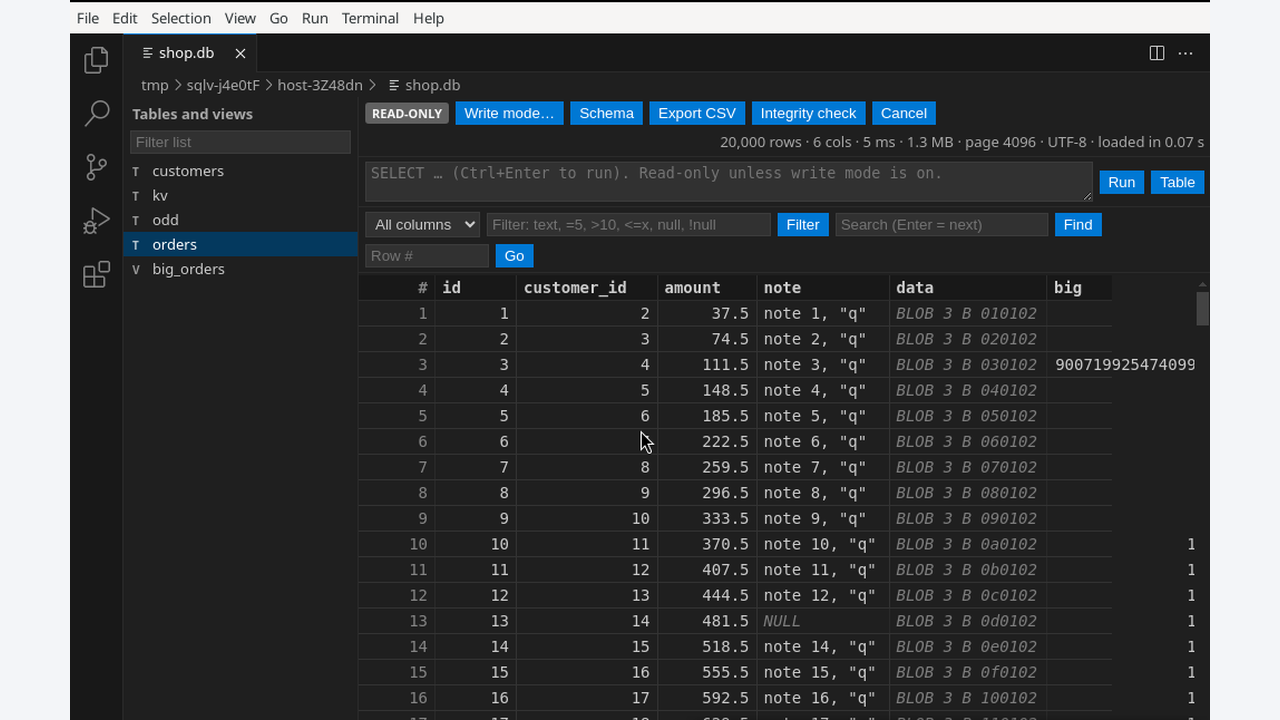
- Read-only unless you say otherwise. The file is opened with SQLite's
query_onlyswitch on, and the extension doesn't write to it. Our tests compare a SHA-256 hash of the file before and after a full session. - Sees the latest data. Committed changes in the
-walfile are applied in memory, and neither file is touched. - Handles big files. On a 214 MB database with 1.2 million rows, it opened in under a second and jumped to any page in 1 to 2 ms in our test.
- Schema at a glance. Columns, types, indexes, foreign keys, triggers and the CREATE statement for each table.
- Filter, sort, search and query. Filter one column or all of them (
>10,<=2024-01-01,null), run SELECT queries, and export any table or result to CSV with your filter applied. - No network, no telemetry. SQLite runs inside the extension, so the file never leaves your computer.
To open a file, right-click a .db, .sqlite, .sqlite3, .db3, .s3db or .sl3 file in the Explorer and choose Open in SafeLite SQLite Viewer.
If you do need to fix a value, you can turn on write mode. You confirm each change after seeing how many rows it affects, and a timestamped backup copy of the file is saved before every write.
It's free on the VS Code Marketplace and Open VSX. More on the SafeLite page.
A few honest limits: it handles files up to 2 GB and needs free memory of roughly the file size. Encrypted databases (such as SQLCipher) are detected but can't be opened, and FTS5 and R*Tree tables show a message instead of rows.
Which one should you use?
- Quick look, already have a terminal open:
sqlite3 -readonly. - You work with SQLite a lot outside an editor: DB Browser for SQLite.
- You work with several kinds of databases: a database IDE.
- You're in VS Code and want to look without risk: SafeLite.
Whichever you pick, open read-only first and copy the -wal file along with the database. That covers most "I opened it and now it's different" surprises.
Questions or a file that won't open? Visit our support page.