How to find broken links and broken images on your website
A product gets removed, a theme update changes image sizes, or a page moves during a migration. The site still looks fine on the homepage, but somewhere a link now leads to a 404 page and a product photo shows an empty box. Visitors notice before you do.
Here are four ways to find those problems, from a quick check of one page to a full scan of every page in your sitemap.
What counts as "broken"
- A broken link points to a page that returns an error, usually 404 (not found) or 410 (gone), or a server error in the 5xx range.
- A broken image is an image URL that returns an error, or returns something that isn't an image at all (for example an HTML error page).
- A redirect isn't broken, but a chain of redirects or a redirect to the homepage often means a page was removed without a proper replacement.
Images are the part most link checkers skip. Modern pages load images through srcset (several sizes of the same photo), lazy-loading attributes like data-src, <picture> sources and the social preview image (og:image). One missing size in a srcset can mean a blank photo on phones only, while it looks fine on your laptop.
1. One page: your browser's developer tools
For a single page, open it in Chrome, Edge or Firefox, press F12, go to the Network tab and reload. Sort by status: anything in red with 404 or 5xx is broken. This also catches the image size your screen actually loaded.
It's free and exact, but only for the one page and the one screen size you're looking at.
2. What Google already found: Search Console
If your site is in Google Search Console, the Pages report lists URLs Google tried to crawl that returned "Not found (404)". It's free and shows what Google sees.
The catch: it only lists pages Google decided to crawl, it can lag days or weeks behind, and it doesn't tell you about broken images or which of your pages still link to the dead URL.
3. A free online or desktop link checker
The W3C Link Checker checks the links on a page (and optionally a few levels deeper) for free in your browser. Desktop crawlers such as Screaming Frog SEO Spider have a free version for smaller sites (free version limits).
These work well for a one-off check. They're less handy when you want to scan from your sitemap, check every image size, or run the same check every week without keeping a computer on.
4. Scan the whole site from your sitemap, links and images together
For a shop or a site with hundreds of pages, it's easier to let a cloud tool read your sitemap.xml, check every link and image once, and hand you a list of only the problems.
That's what our Broken Link & Image Checker on Apify does:
- Start from a page or from your sitemap.xml. It scans your pages, then checks every unique link and image it found.
- Images, not only links. It checks
<img>tags,data-src, everysrcsetsize,<picture>sources andog:image/twitter:image. - It tells you where to fix it. Every broken URL comes with the pages it appears on (up to 10) and a count, so you know which product page or template to edit.
- Each URL is checked once, even if it appears on 200 pages. A logo in your header is one check, not 200.
- Pay per checked URL. $0.00089 per checked URL, no start fee. Scanning pages is free. A shop with 300 unique links and images costs about $0.27. You can set a maximum cost per run, and it stops before that amount.
- Polite to your server. About one request per second per site, it follows robots.txt and it doesn't log in or get around bot protection.
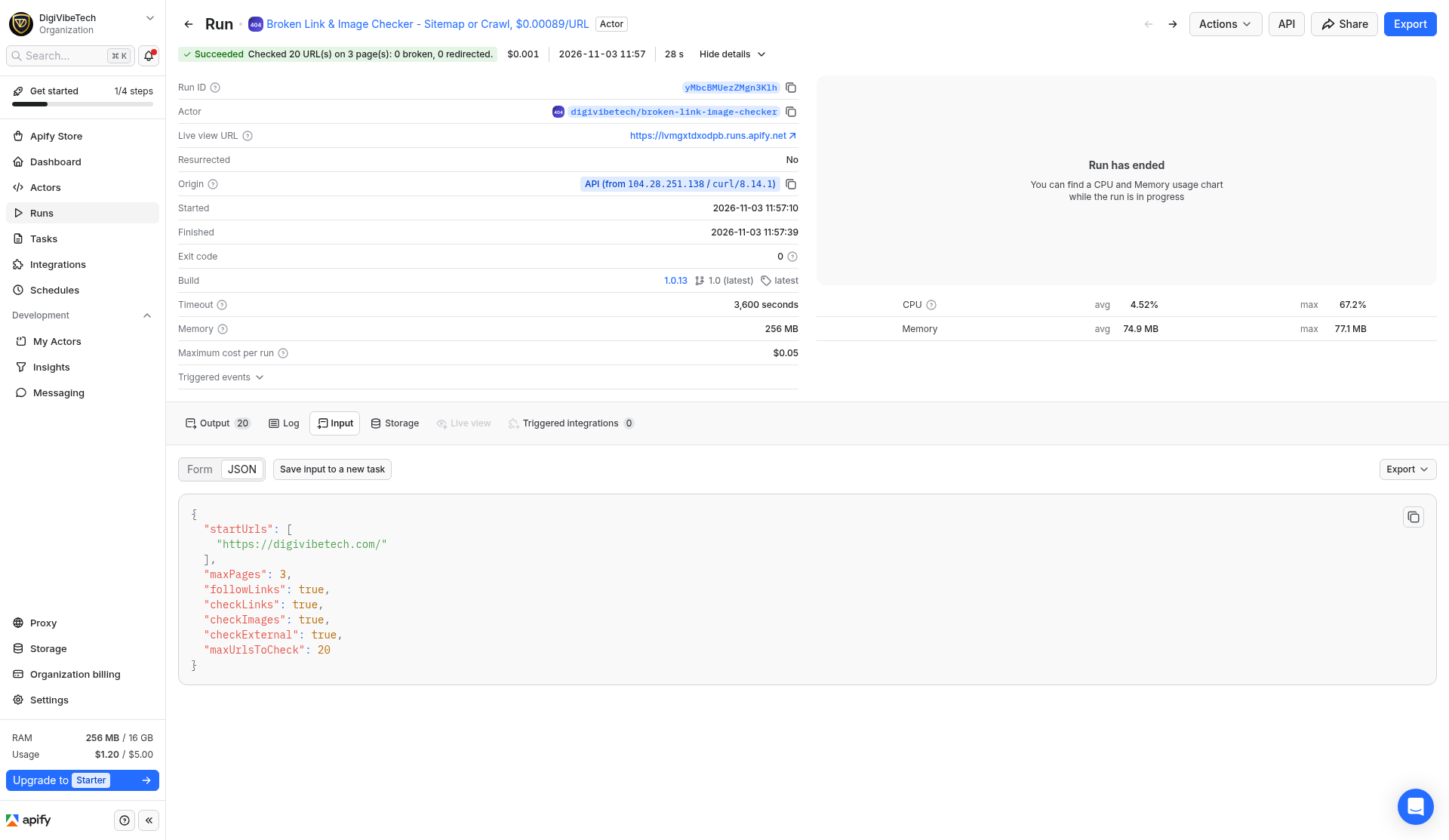
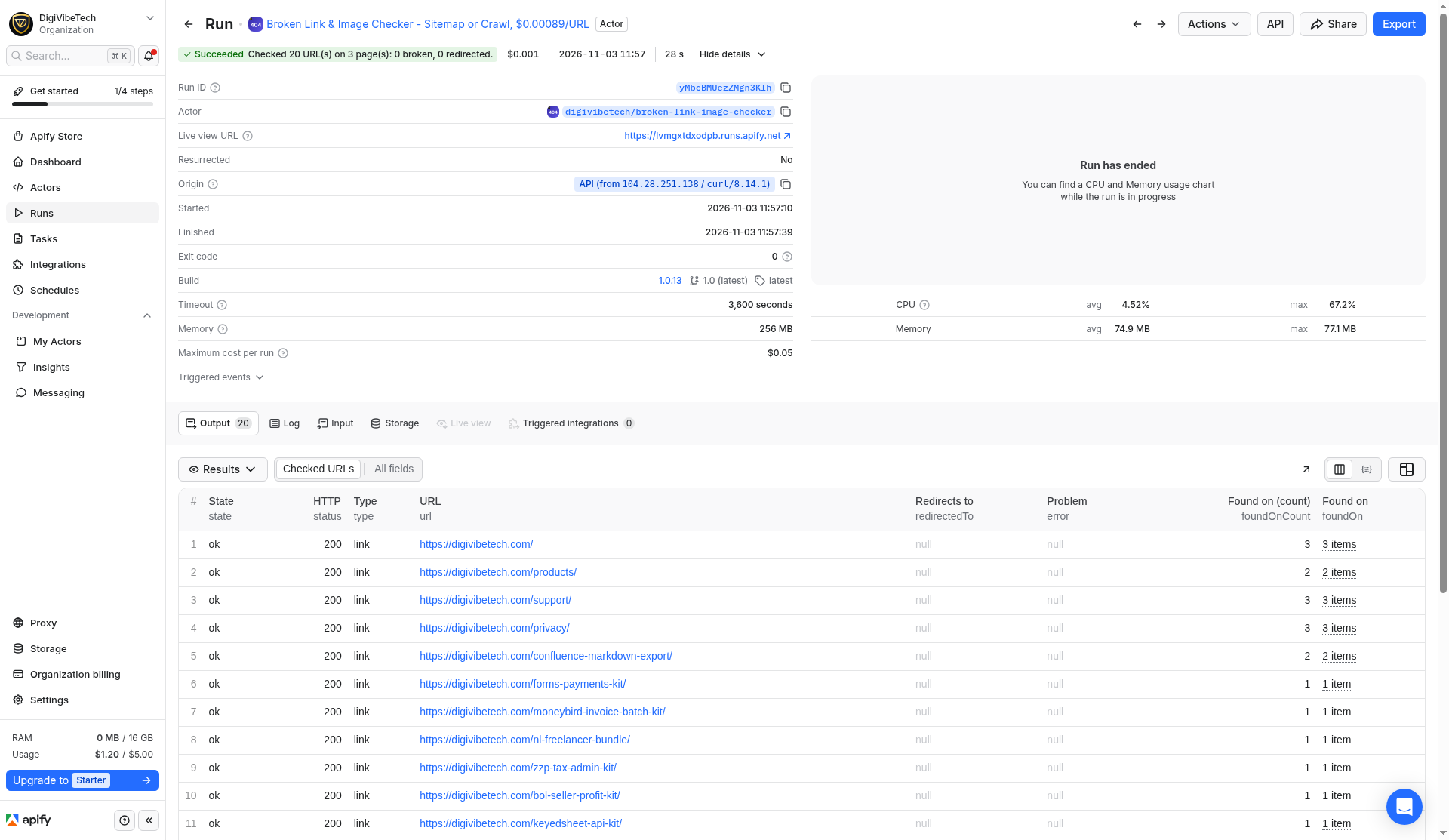
The screenshots above are from a real run on our own site on 3 November 2026: 3 pages scanned, 27 URLs found, the first 20 checked (we set a limit of 20), all OK. A healthy result looks exactly like that: a full table and an empty list of problems.
Try it for a few cents
Run it on your own homepage with a low limit first, for example 3 pages and a maximum of 20 URLs. That's at most 20 × $0.00089, under 2 cents, and you see the full output before you scan the whole site.
Good to know
- It reads the HTML your server sends, without a browser. Links or images that only appear after JavaScript runs are not seen.
- Some sites block automated requests. Their links can show up as broken or unreachable even when a browser opens them fine, so double-check external links before removing them.
- Pages your robots.txt blocks are not scanned, so links found only there are not checked.
- On large sites (thousands of URLs), raise the run timeout or split the scan into several runs. It saves everything found so far if it hits the timeout.
After the scan: what to fix first
- Broken links inside your own site. Update the link, or add a 301 redirect from the old URL to the closest matching page (not the homepage).
- Broken product images. Re-upload the photo or regenerate the missing image sizes. If only one
srcsetsize is broken, regenerating thumbnails usually fixes it. - Broken outbound links. Replace them with a working source or remove them.
- Redirect chains. Point the link straight at the final URL.
Then run the same scan again to confirm the list is empty.
How often to check
After any migration, theme change, bulk product import or removal, run a full scan. In between, a monthly check is enough for most small sites. Shops that remove or rename products every week benefit from a weekly run on a schedule.
Questions about the checker? See our support page.